iFlyPoGo is a location spoofing tool designed specifically for iOS users. It works directly with original apps such as Pokémon GO 🎮, Monster Hunter Now, and Snapchat, allowing you to change your GPS location without jailbreaking your device.
This guide will walk you step-by-step through installing iFlyPoGo for the first time, setting up Bluetooth connections 🔗, and using its two core modes (Joystick & Teleport) so you can get started quickly and avoid common connection mistakes.
⚠️ Important:
Even for short-distance jumps, we still recommend NextDNS for the best stability (tested to hold spoofing for 10+ hours).
If you’re teleporting within 15 km, just follow Steps 1–8 in this guide.
If you’re teleporting more than 15 km, you must also complete Step 9 (Configure NextDNS for Teleports Over 15 km) to keep your location stable.
1. Before You Begin
Make sure you have the following ready:
- ✅ iFlyPoGo installed and running properly.
- 🔑 A VIP or trial account (Bluetooth connection will not work without one).
- 📱 An iPhone (iOS) and a 💻 Windows computer.
- 🔵 Your iPhone is already paired with your Windows PC via Bluetooth before opening iFlyPoGo.
2. Turn Off Bluetooth Connections
You must turn off Bluetooth before connecting; otherwise, the connection may fail.
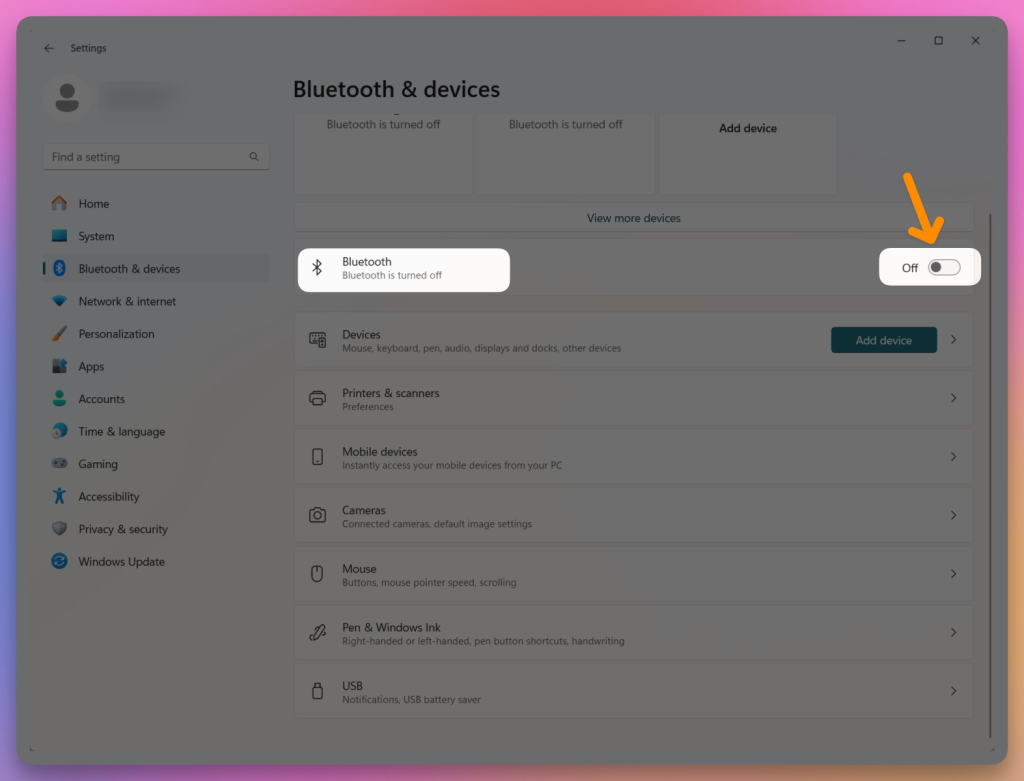
- On your computer 🖥️: Turn off Bluetooth → Make sure no devices are connected.
On your iPhone 📱: Turn off Bluetooth.
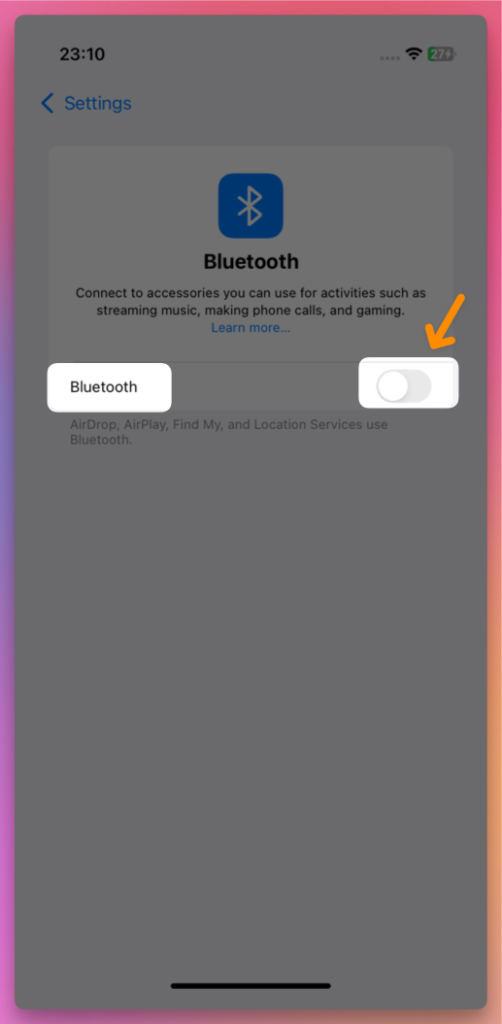
- Then, wait 5 seconds.
3. Turn On Bluetooth on Your Computer and iPhone
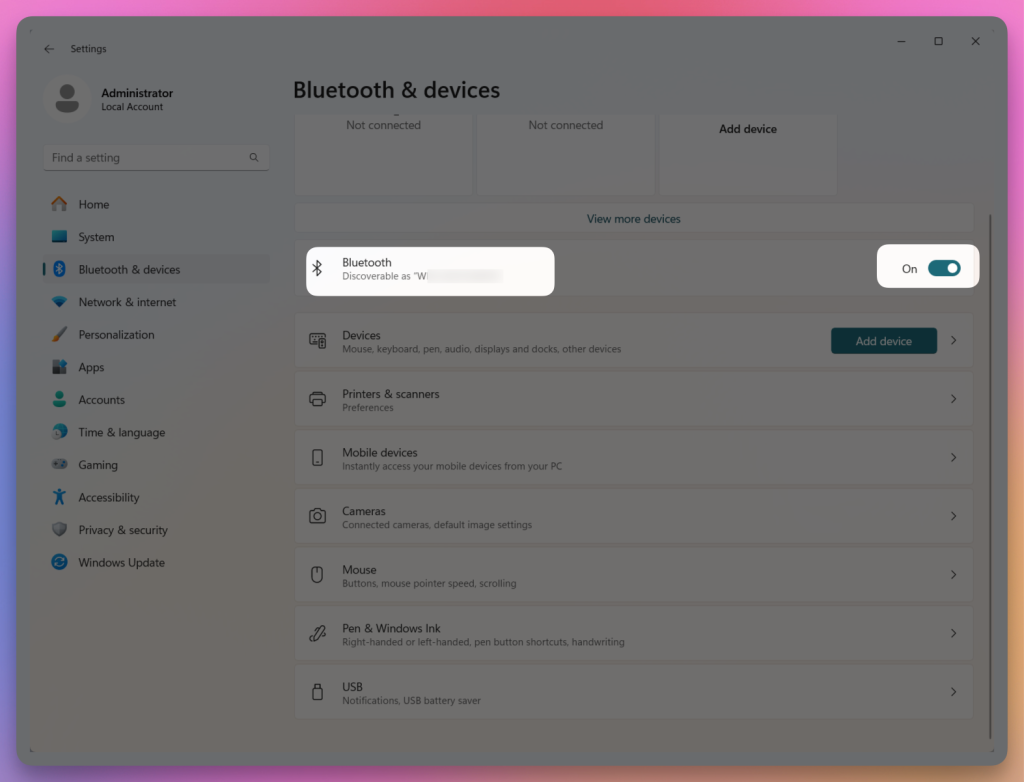
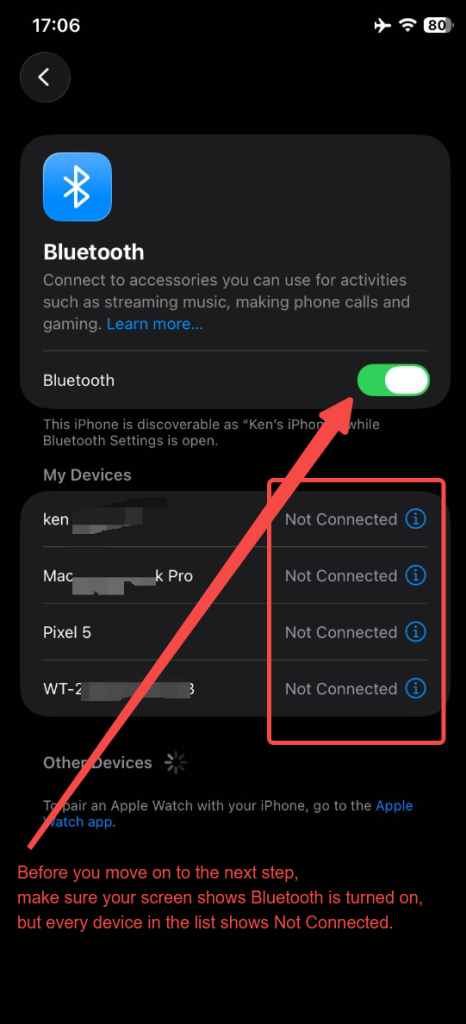
Turn Bluetooth on for your computer, and Turn on your iPhone bluetooth, Before you move on to the next step, make sure your screen shows Bluetooth is turned on, but every device in the list shows Not Connected.
4. Launch iFlyPoGo and Log in with Discord
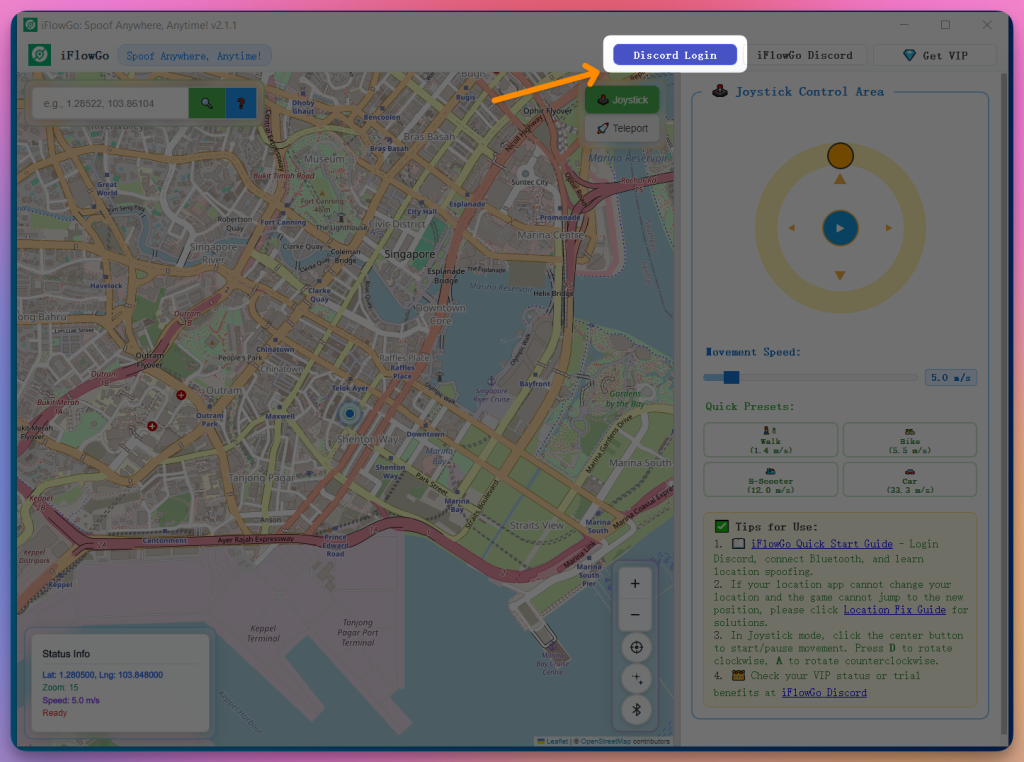
- Open iFlyPoGo → Click Discord Login.
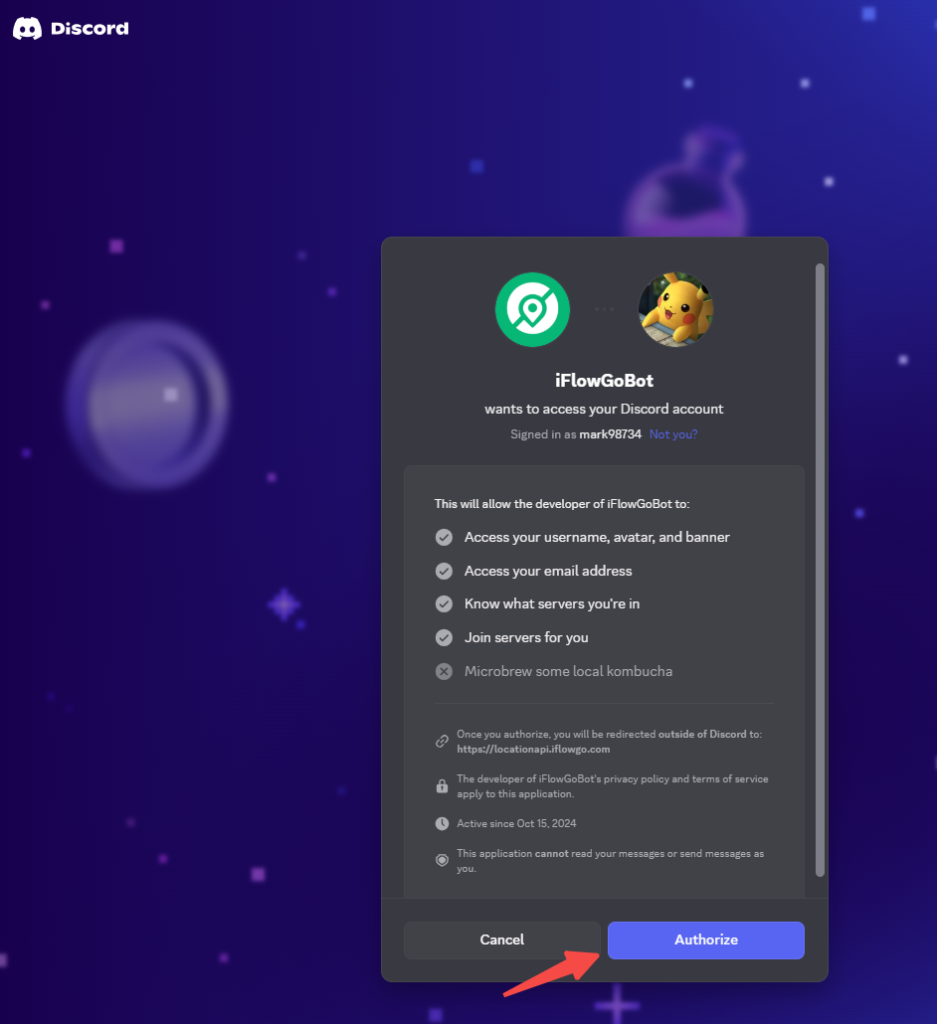
- The browser will redirect to the authorization page → Click Authorize ✅.
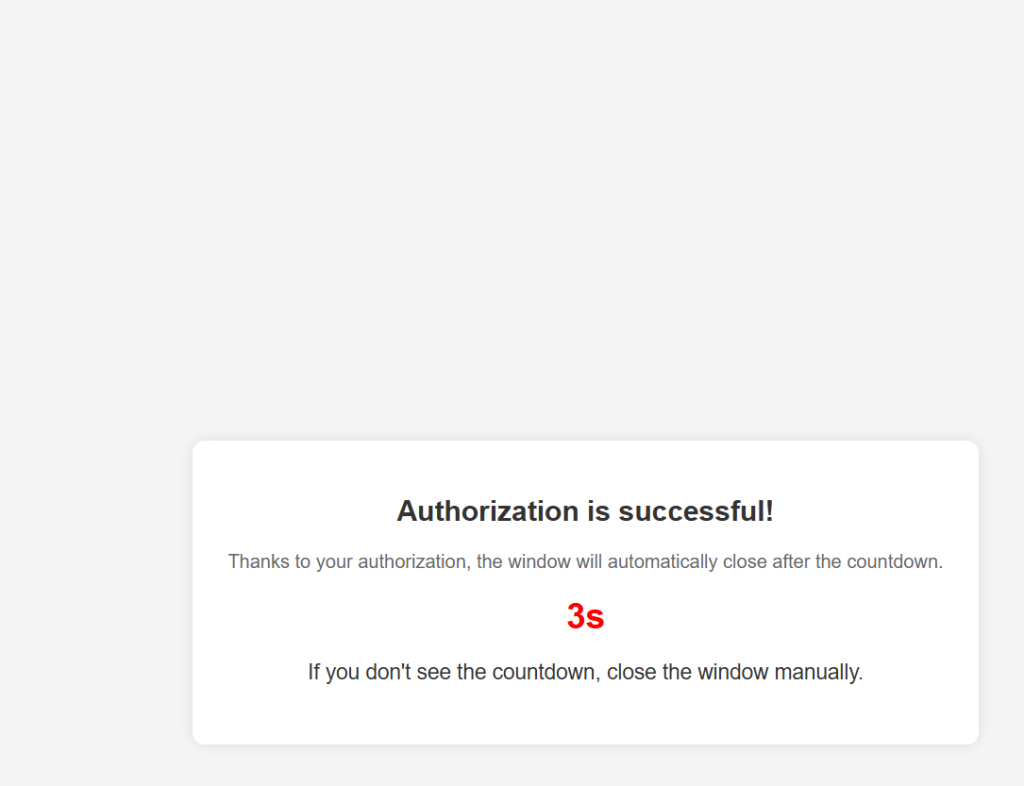
- Return to iFlyPoGo; it will automatically log you in.
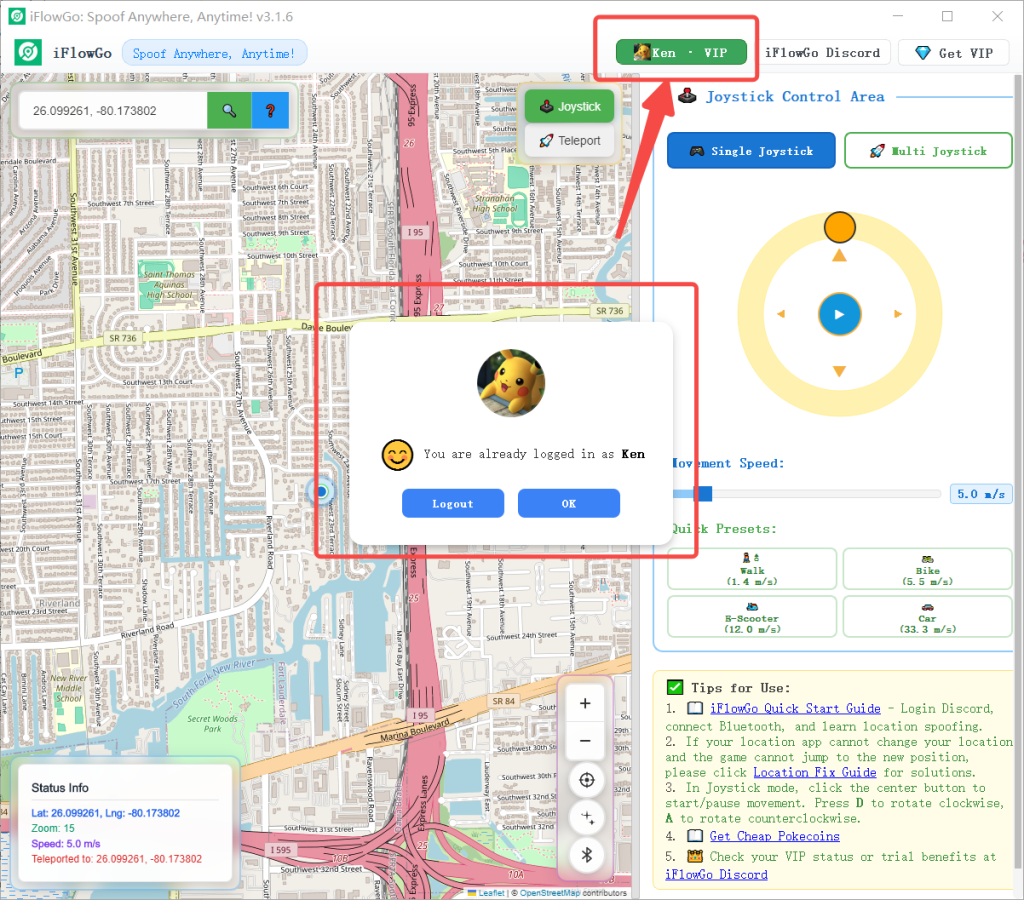
5. Bluetooth Connection Steps (Important)
- Make sure Bluetooth is turned on for both your PC💻 and your iPhone 📱, but all devices in the Bluetooth list should show as Not Connected.
- Bluetooth Connection Video Guide:
- In iFlyPoGo, click the Bluetooth icon → then click on Start Scan Button.
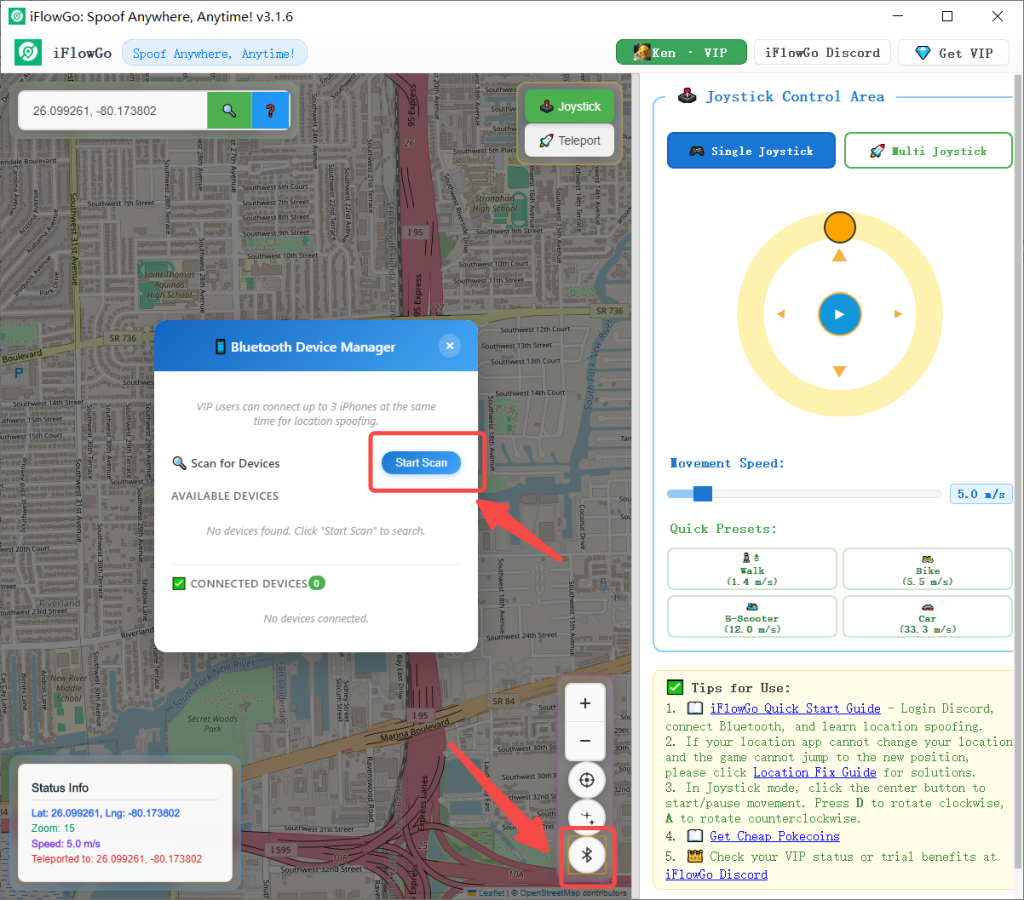
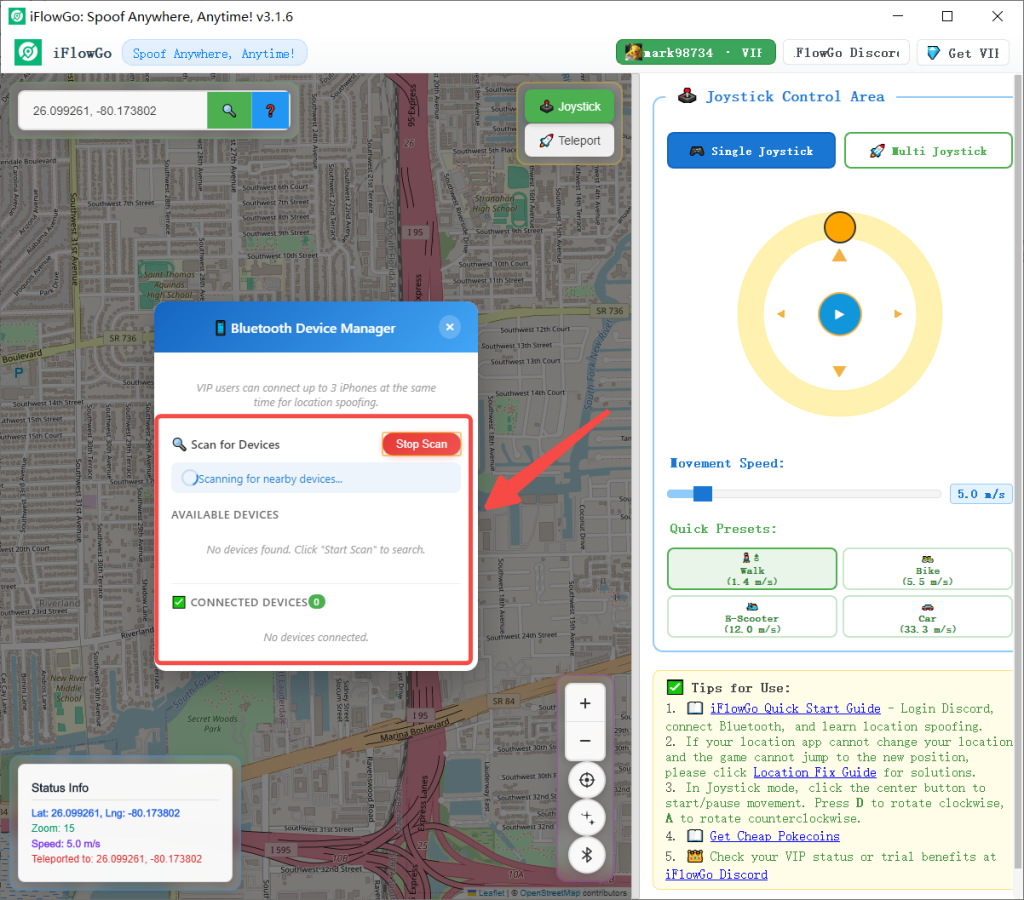
- A list of Bluetooth devices will appear, and you’ll see their status update from Offline to Online.
- Note: After hitting Start Scan, your Bluetooth devices should normally show up within 30 seconds. If you’ve waited 90 seconds and still nothing appears, check whether your Windows Bluetooth or Bluetooth adapter is turned on. If it’s already on but still nothing’s showing up, try turning off Bluetooth (or unplugging the adapter), wait about 40 seconds, then turn it back on or plug the adapter back in.
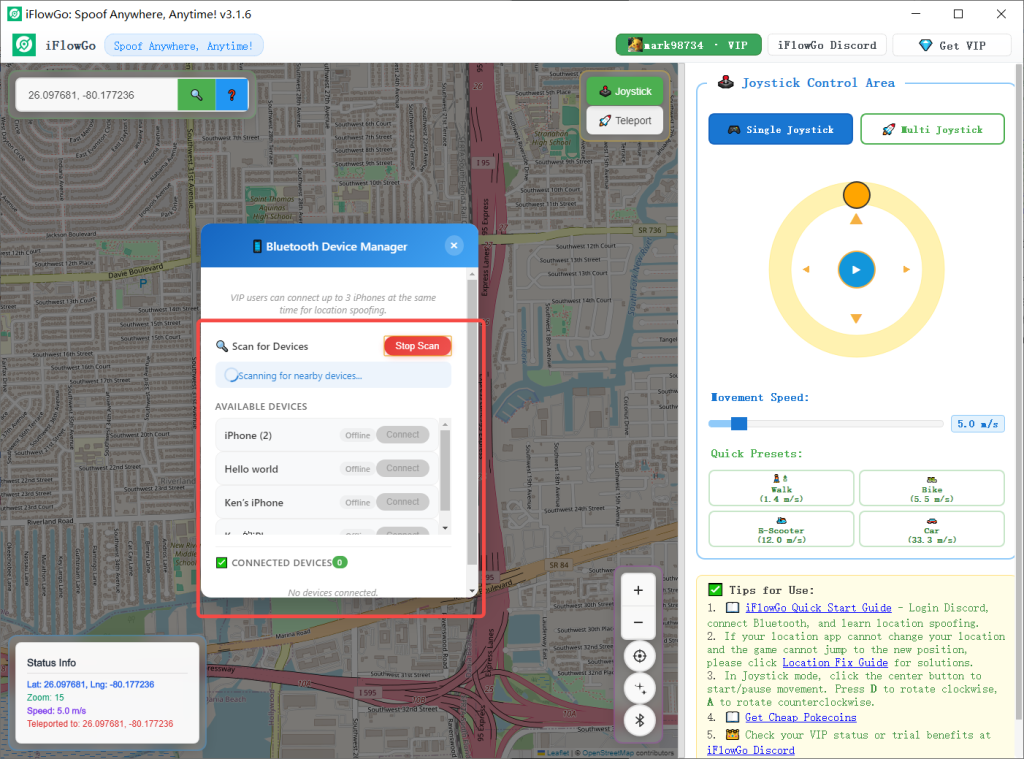
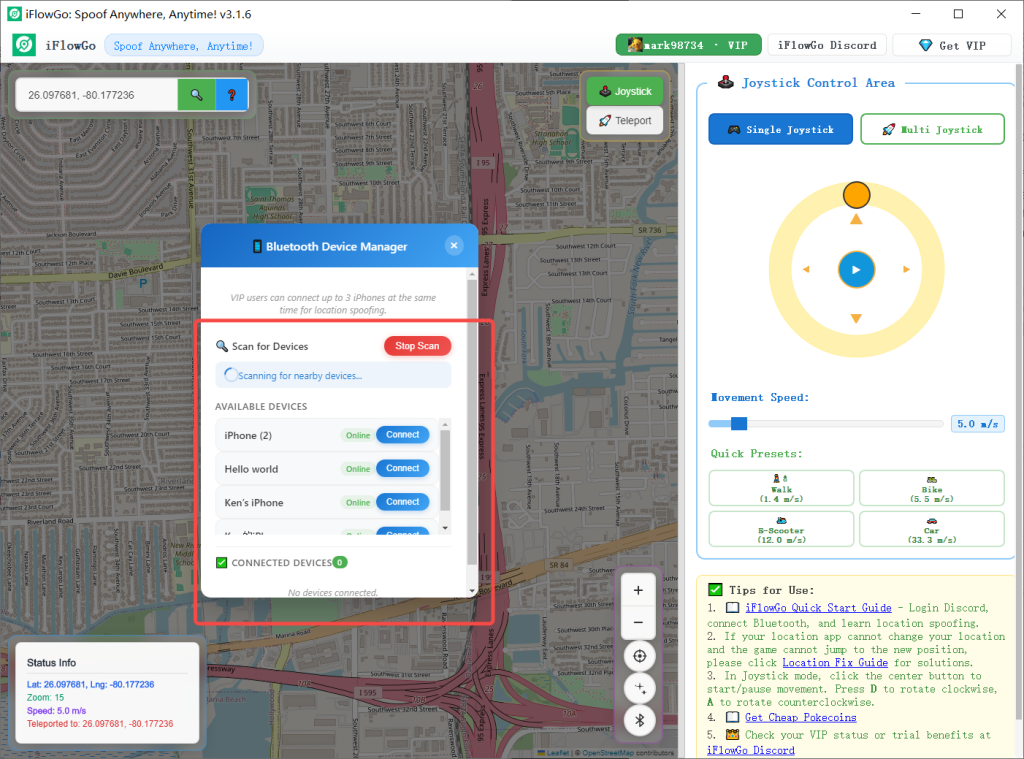
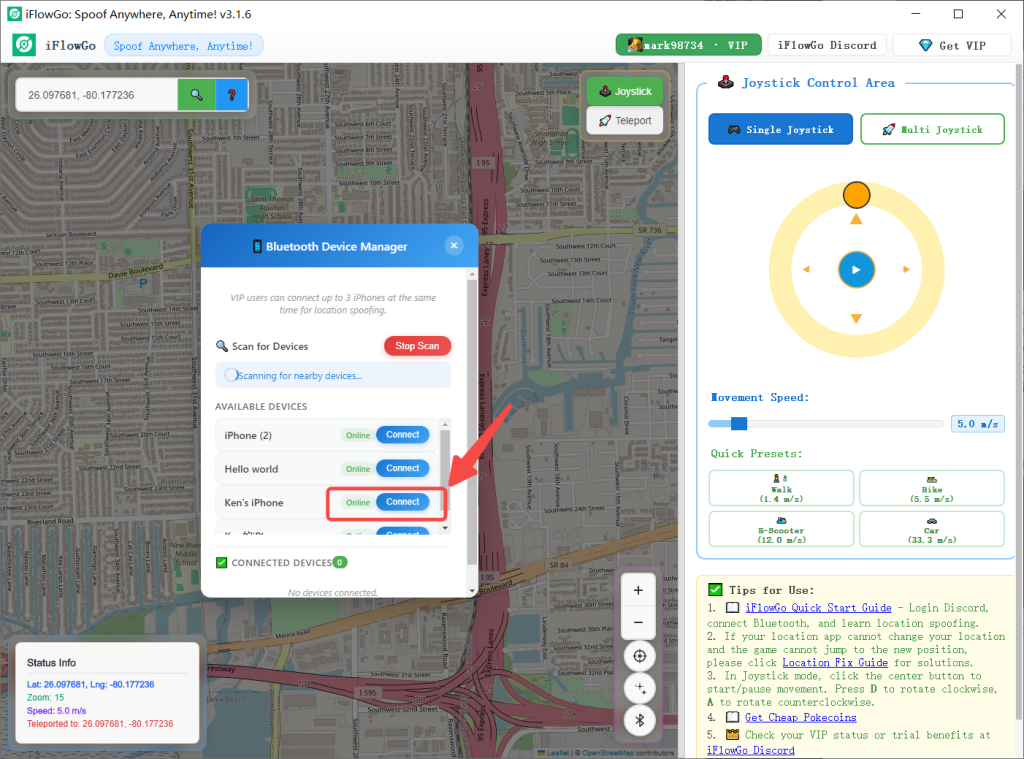
- Next, tap one of the devices from the Bluetooth list and hit the Connect button to start connecting. You’ll see a Connecting popup appear — just sit tight for about 3 to 20 seconds.
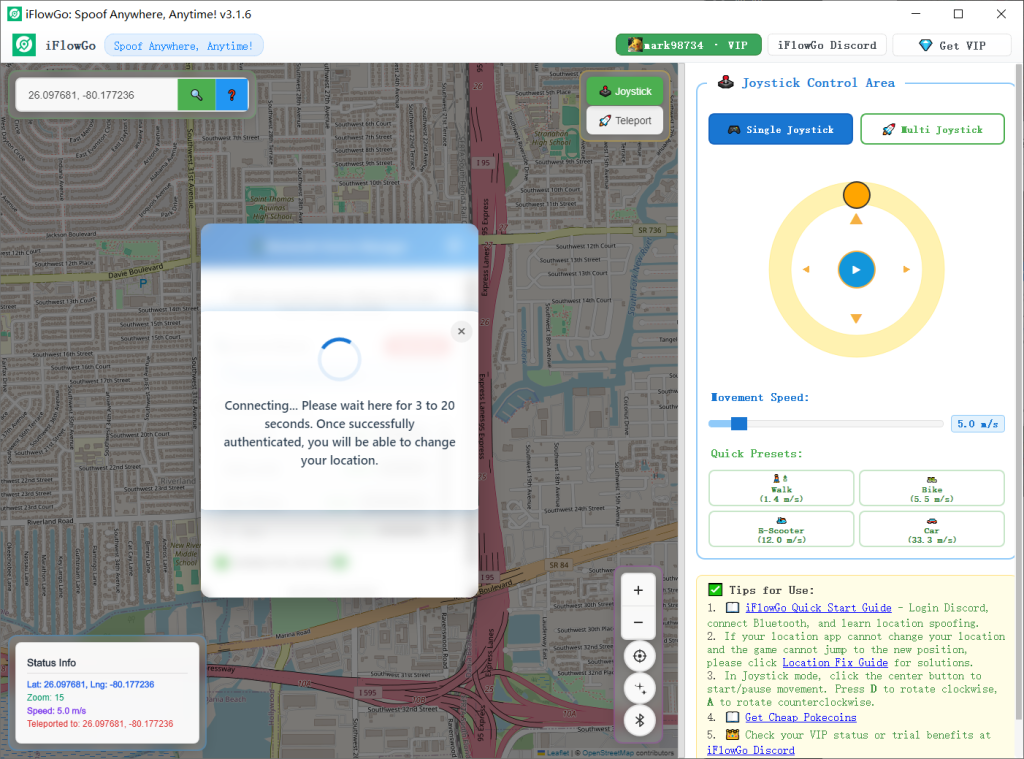
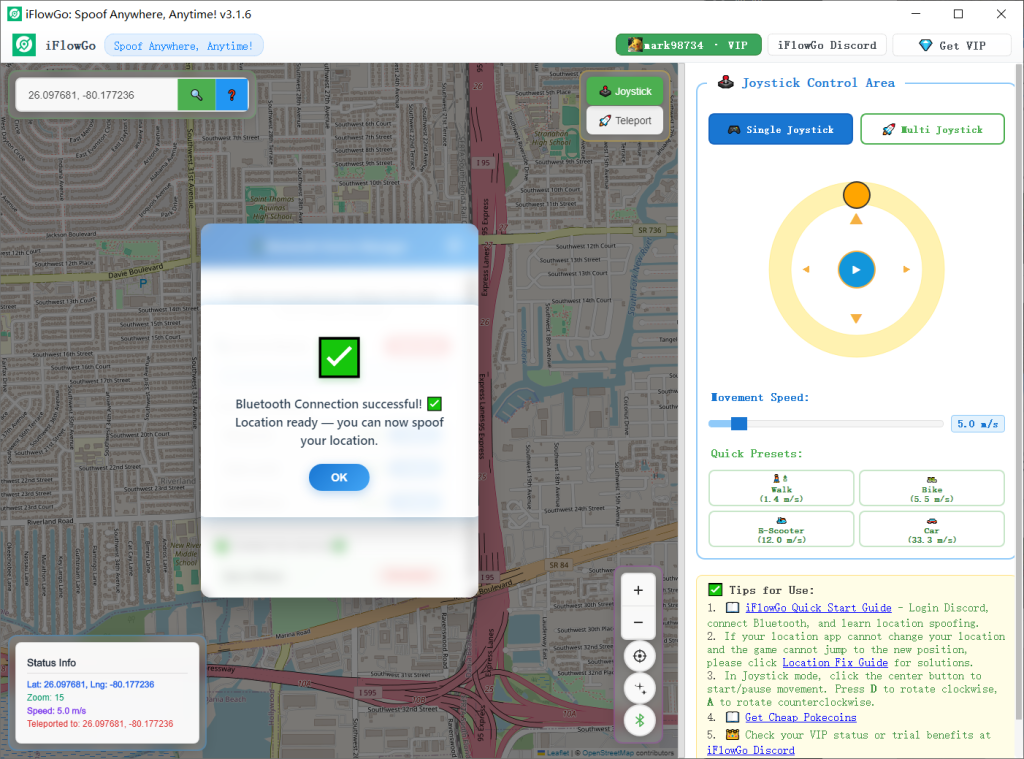
- Once the Bluetooth connection is established, there will be a location initialization process — wait around 12 seconds before you can change your location.
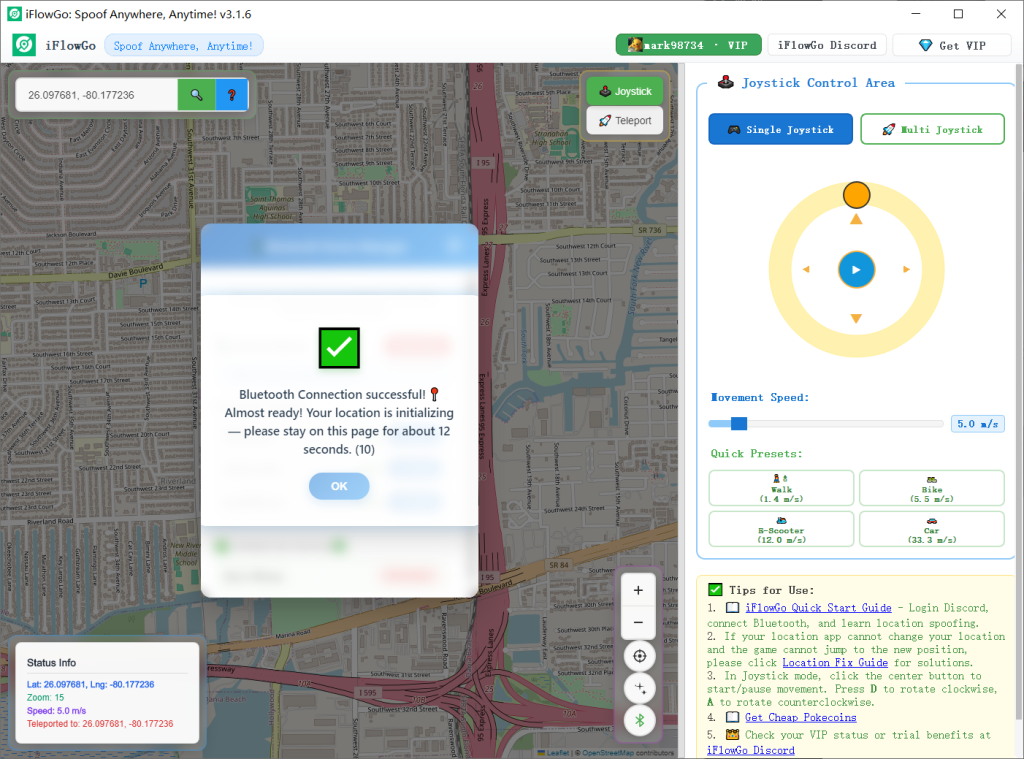
- After that, you’ll see a confirmation that says Bluetooth connected successfully, location initialized, and “You can now spoof your location” — at that point, you’re all set to change your location.
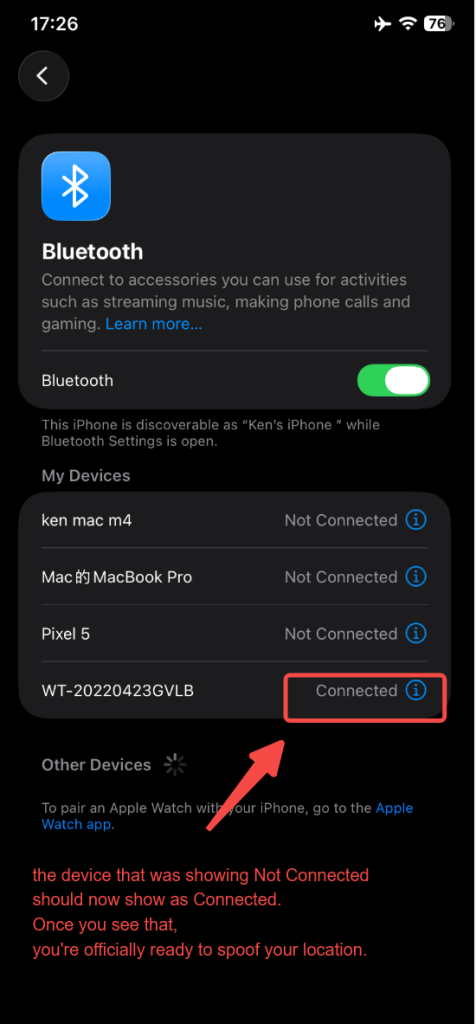
- Also, check your iPhone’s Bluetooth list — the device that was showing Not Connected should now show as Connected. Once you see that, you’re officially ready to spoof your location.
6. Choose a Location Mode
- Joystick Mode 🕹️: Ideal for slow movement in Pokémon GO, simulating real walking 🚶♂️.
- Teleport Mode 🚀: Instantly jump to any location within 15 km, perfect for quickly reaching hunting spots in Monster Hunter Now 🐲.
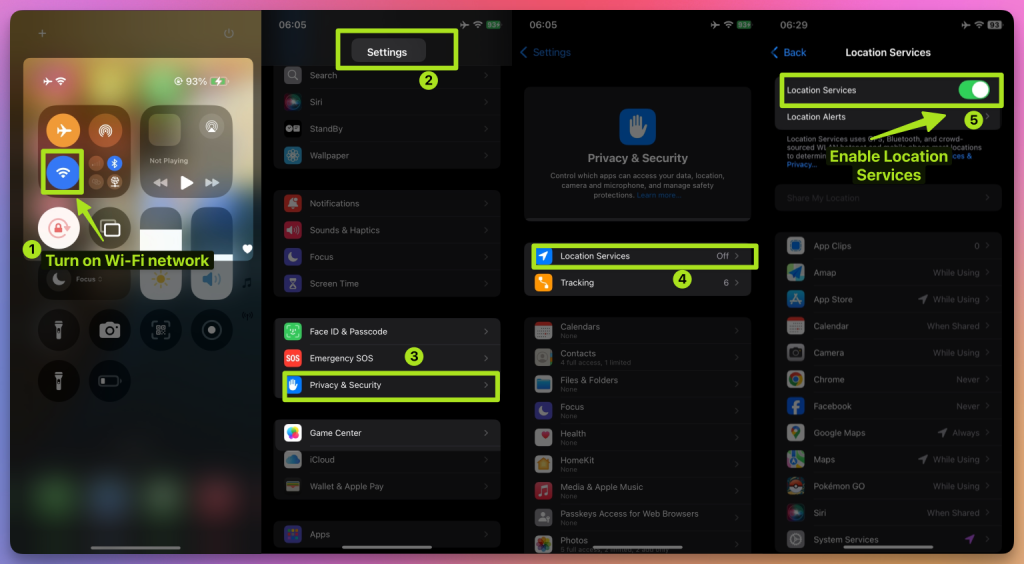
7. How to Fix the Map Not Showing Your Location
If the map doesn’t display your position:
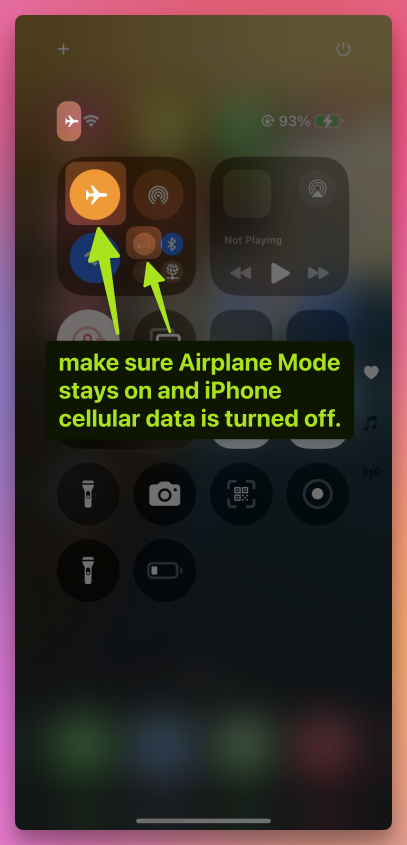
- Make sure Airplane Mode stays on and iPhone cellular data is turned off.
- Keep the Bluetooth connection active 🔗.
- Turn off Wi-Fi 📡, and Location Services 📍 on your iPhone
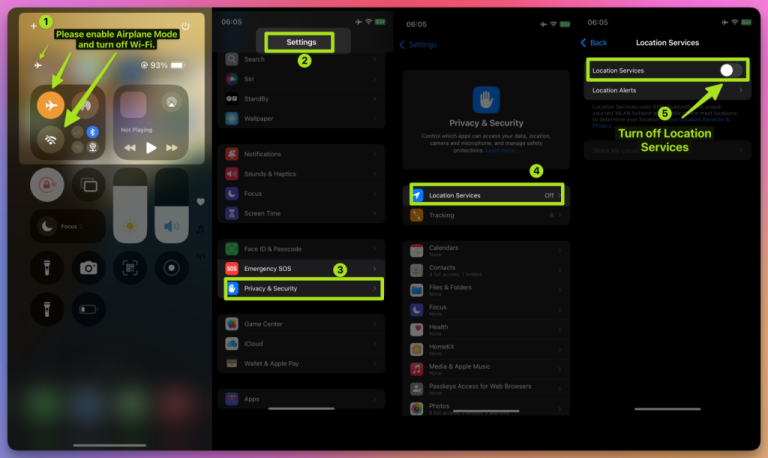
Wait 10 seconds ⏳. Turn them back on.
8. Tips for Using iFlyPoGo in Pokémon GO, Monster Hunter Now, and Snapchat
Pokémon GO 🎮:
- Use Joystick Mode to move slowly around your usual area and catch Pokémon 🐾 without triggering bans 🚫.
- Use Teleport Mode to join gym battles or catch rare Pokémon.
Monster Hunter Now 🐉:
- Use Teleport Mode to quickly reach monster spawn points.
- Use Joystick Mode for short-distance combat movement.
Snapchat 📸:
- Check in and take photos in different cities 🏙️ to unlock unique location filters ✨.
9. Configure NextDNS for Teleports Over 15 km
If you’re teleporting more than 15 km, you must configure NextDNS first — otherwise your spoofing may become unstable or fail after a short time.
⚠️ Setup steps:
- 👉 Follow the NextDNS Setup Guide.
- Configure both your iPhone and Windows computer with the provided NextDNS settings.
- Once completed, you can safely teleport long distances without losing location sync.
- In our tests, NextDNS keeps spoofing stable for 10+ hours, even during extended gameplay.
💡 Tip:
- For teleports under 15 km, Steps 1–8 are enough.
- But even for short-distance spoofing, we still recommend enabling NextDNS for extra stability.
10. All Set! Start Your Virtual Adventure
You’ve successfully set up iFlyPoGo for the first time ✅. Now you can freely move your location in Pokémon GO, Monster Hunter Now, Snapchat, and more—explore the virtual world your way! 🚀 iFlyPoGo, Spoof Anywhere, Anytime — Change Your iPhone GPS Instantly. No jailbreak, no cracked apps. 🏆 #1 iOS spoofing tool on Patreon. ✅ 100% Safe.